



Understanding the Significance of 10.10.10.1
10.10.10.1 is recognized as a private IP address, specifically classified within the reserved IP range set aside for private networks. These private IP addresses are essential in enabling communication within local networks without directly exposing devices to the public internet. This particular address serves as a gateway for various devices to connect to the internet through a shared public IP address.
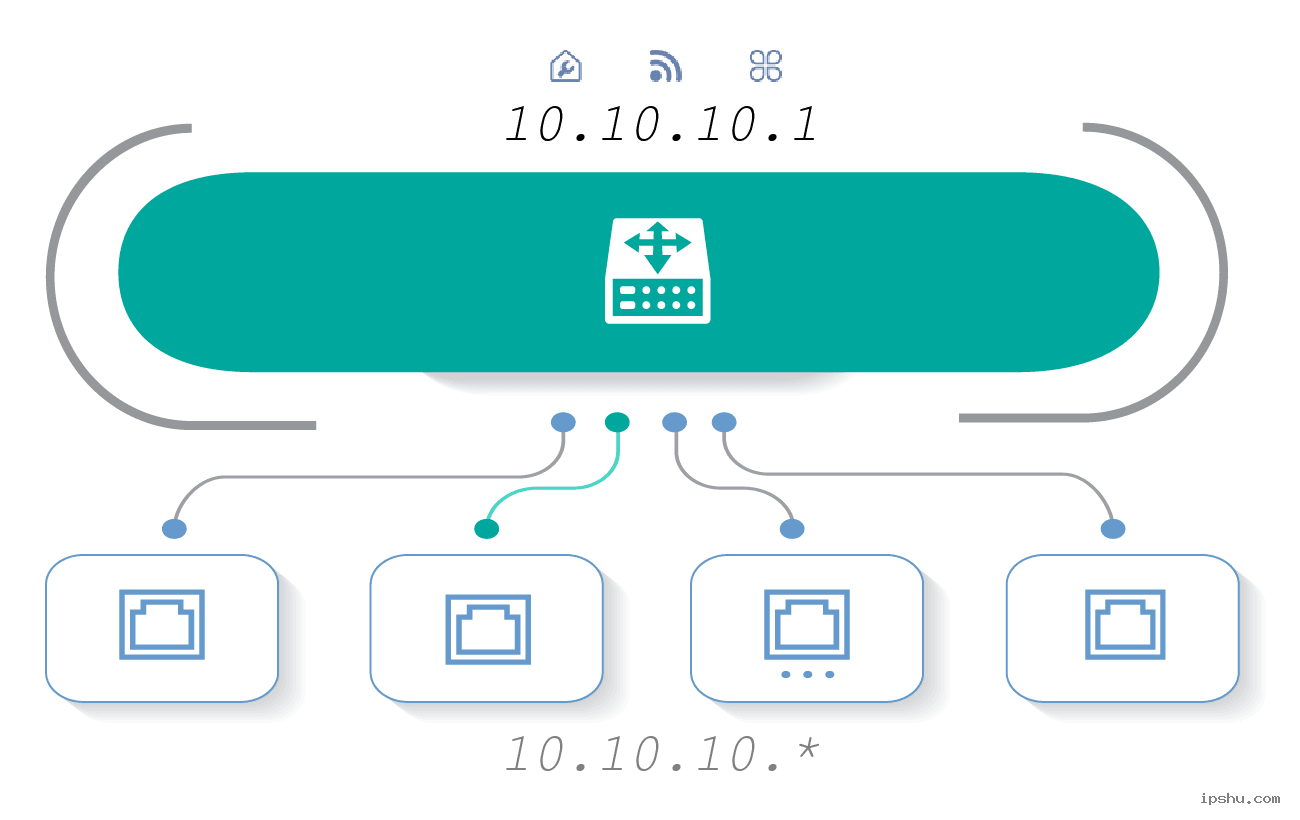
Primarily, the usage of 10.10.10.1 is common among home and business networks. It acts as the default gateway for many routers and serves as a local IP for devices connected to the network. Through routing capabilities, 10.10.10.1 allows data packets to be directed to their destination, facilitating effective communication between devices such as computers, printers, and smartphones.
The significance of 10.10.10.1 also lies in its role in network management. Administrators utilize this IP address to access router settings, allowing for configuration adjustments such as security protocols and bandwidth allocation. Moreover, using private IP addresses like 10.10.10.1 enhances security, as they are not reachable from outside the local network, reducing susceptibility to external cyber threats.
Furthermore, due to the limitations of available IPv4 addresses, 10.10.10.1 provides a systematic approach to network organization. Organizations can allocate this IP address range to different segments within their infrastructure, ensuring effective management and resource allocation. As networks grow, understanding the use and functionality of private IPs like 10.10.10.1 becomes increasingly crucial.
Accessing 10.10.10.1
Accessing the IP address 10.10.10.1 is a straightforward process that allows users to manage their network settings. This address is commonly used as a default gateway for many home and office routers. To initiate the access, begin by ensuring that your device is connected to the network associated with the router set at this IP address. Generally, this can be achieved via a Wi-Fi connection or through a direct Ethernet cable connection.
Once your device is connected, follow these simple steps to access 10.10.10.1:
- Open a Web Browser: Launch any web browser on your connected device. This could be Chrome, Firefox, Safari, or Edge.
- Enter the IP Address: In the address bar of your web browser, type in http://10.10.10.1 and press Enter. Make sure to include the correct protocol (http://) to avoid any errors.
- Login Screen: After a brief moment, you should be directed to the router’s login page. Here, you will typically be required to enter credentials to access the router’s settings.
- Default Credentials: If you haven’t changed the default login credentials, check your router’s manual or label on the device, as common username and password combinations include “admin” and “password” or “admin” and “admin”.
- Access the Interface: Once logged in successfully, you will be directed to the router’s configurations interface, where you can adjust various network settings as needed.
Should you encounter difficulties when attempting to access 10.10.10.1, ensure that your network configuration is correct and that there are no connectivity issues. Additionally, consider checking for the correct IP address if your device does not respond appropriately.
Default Login Credentials for 10.10.10.1
When configuring a network device using the default IP address 10.10.10.1, users often encounter the need to log in using specific credentials. Most devices associated with this IP address come pre-configured with standard usernames and passwords. Understanding these default login credentials is essential for initial access and subsequent management of the device.
The most commonly used username is typically “admin,” which is often matched with the default passwords such as “admin,” “password,” or “1234.” These combinations can vary depending on the manufacturer. Some devices may also use slightly different formats, like “user” as a potential username alongside the generic passwords mentioned. As network installation and maintenance often rely on these credentials, ensuring their correct input remains crucial.
However, utilizing the factory-set login details represents a significant security risk. Cybersecurity experts strongly recommend changing these default values immediately upon accessing the system for the first time. Since these common credentials are well-documented, leaving them unchanged can provide unauthorized users easy entry into the network, making devices vulnerable to external attacks.
In addition to changing the username and password, it is also advisable to employ complex passwords that include a mix of letters, numbers, and special characters. This approach enhances security and minimizes the risk of unauthorized access. Regularly updating credentials as part of a comprehensive security protocol further helps protect the network environment.
Common Issues When Accessing 10.10.10.1
Accessing the IP address 10.10.10.1 is essential for managing many network devices, particularly when configuring routers and other network hardware. However, users often encounter various issues while attempting this connection. Understanding these issues can facilitate smoother access and device configuration.
One of the most common problems is users experiencing difficulty connecting to the IP address. This can stem from a few sources, such as incorrect device settings or improper connections. Ensure your device is connected to the network associated with the 10.10.10.1 address. This generally involves being connected to the appropriate Wi-Fi or Ethernet network designated for the device.
Another frequent hurdle is the failure to load the login page after entering 10.10.10.1 in the web browser. This can be attributed to various factors, including browser issues or incorrect IP configurations. To address this, clear your browser’s cache and cookies, or try a different web browser. Also, verifying that the IP address has not changed due to a reset or configuration can save time and effort.
Additionally, passwords can pose a challenge for users who have forgotten their login credentials. Many devices come with default usernames and passwords, but if they have been altered, a reset might be necessary to return the device to factory settings. This can usually be accomplished by locating a small reset button on the device itself and holding it down for a specific period.
In some cases, underlying network issues might prevent access altogether. Running troubleshooting on your network connection may help identify if there are connectivity issues that need to be resolved. Regularly updating firmware and network drivers can also minimize problems associated with accessing the 10.10.10.1 interface.
Configuring Network Settings via 10.10.10.1
The IP address 10.10.10.1 serves as a local gateway in many router configurations, providing users with access to their router’s administrative interface. To effectively configure network settings, such as Wi-Fi parameters, security options, and parental controls, one must first connect to the network directly associated with this IP address. The following steps outline how to navigate this process.
To begin, ensure that your device is connected to the router using either an Ethernet cable or via its Wi-Fi connection. Open a web browser and type http://10.10.10.1 into the address bar. Press enter, and you should be prompted with a login screen. Enter the appropriate credentials, typically the default username and password specified in the router’s documentation. Upon successful login, you will be redirected to the router’s settings dashboard.
Within the dashboard, various tabs or sections will provide access to different settings. For adjusting Wi-Fi settings, look for an option labeled ‘Wireless’ or ‘Wi-Fi Settings’. Here, you can modify the network name (SSID), establish a strong security password, and select the appropriate Wi-Fi encryption type. It is advisable to utilize WPA3 or WPA2 encryption protocols to enhance security.
Next, the security settings section is crucial for safeguarding your network from unauthorized access. You may find options to enable firewalls, configure MAC address filtering, and set up guest networks. Implementing these measures will help enhance the overall security of your network.
Lastly, for users seeking to manage internet access for children or specific devices, the parental controls section is where such configurations can be made. You can create schedules, block specific sites, or restrict internet usage at certain times. These features are invaluable for maintaining a secure online environment.
By following these guidelines and utilizing the settings available via 10.10.10.1, users can effectively customize their home or office network to meet their individual needs, enhancing both functionality and security.
Changing Network Passwords through 10.10.10.1
Changing your network password and SSID is essential for maintaining security on your home or office wireless network. Accessing this functionality is relatively straightforward via the 10.10.10.1 interface. This address is typically used by various routers to provide a gateway for users to modify settings, including the Wi-Fi password and network name.
To begin, ensure that your device is connected to the network you wish to modify. Open a web browser and enter http://10.10.10.1 in the address bar, then press Enter. You will be prompted for a username and password; the default credentials are often ‘admin’ for both fields unless changed previously. Always consult your router’s manual if these credentials do not work.
Once logged in, navigate to the ‘Wireless’ or ‘Wi-Fi’ settings section, which is usually found in the main menu. Here, you will see options for your current SSID (network name) and wireless security settings. To change your network name, replace the existing SSID with your desired one. Make sure this name is unique to mitigate any confusion with nearby networks.
Next, to improve security, it is advisable to update the Wi-Fi password. Locate the ‘Password’ or ‘Pre-Shared Key’ field within the security settings. Enter a strong password that combines letters, numbers, and special characters to enhance protection against unauthorized access. After making these changes, ensure to save your alterations by clicking on the ‘Apply’ or ‘Save’ button.
Finally, restart your router if prompted to make certain the changes take effect. This process may disconnect currently connected devices, so it’s prudent to inform household members or co-workers about the new login credentials. By regularly updating your network password and SSID, you can significantly bolster your network’s security, helping to protect sensitive information.
Firmware Updates at 10.10.10.1
Keeping your network devices updated is crucial for ensuring optimal functionality, security, and performance. Firmware updates provided through the interface at 10.10.10.1 play a vital role in addressing bugs, adding new features, and enhancing the overall stability of your hardware. By routinely checking for and applying these updates, users can protect their networks from potential vulnerabilities and enjoy improved features.
To begin the firmware update process, start by opening a web browser and entering 10.10.10.1 into the address bar. This IP address serves as the gateway to your device’s administrative settings. Once you access the interface, you may be prompted to log in; use your administrator credentials. If you’re unsure of the login details, consult your device manual or the manufacturer’s website for guidance.
After successfully logging in, locate the firmware update section. This is typically found in the “Administration,” “System,” or “Settings” tab, depending on the device. Look for an option labeled “Firmware Update” or “Software Update.” In this section, you will typically find available version information if an update is needed.
Next, if an update is available, you may see a button to “Check for Updates.” Clicking this button will allow the system to search for the latest firmware. If an update exists, follow the prompts to download and install it. Be sure to read any release notes as they may contain important information regarding changes and improvements.
It is advisable to back up your current settings before performing any updates. Most devices will give you an option to back up your configuration. Once you have completed the update, it is essential to restart your device if prompted. Finally, verify that the update has been successfully applied by checking the firmware version in the same section you used to update.
Troubleshooting Connection Issues Related to 10.10.10.1
When using devices configured with the IP address 10.10.10.1, users may encounter various connectivity issues. These problems can arise due to multiple factors such as incorrect settings, hardware malfunctions, or network disturbances. Addressing these issues methodically can help restore proper connectivity. Below are some troubleshooting tips to consider when faced with connection problems.
First, ensure that the device is properly connected to the network. Confirm that all cable connections are secure, and if using Wi-Fi, that the device is indeed connected to the correct network. If necessary, restart both the router and the device. This can often resolve temporary glitches affecting the connection.
Next, check the device’s settings to verify that the IP address and subnet mask are properly configured. The device should display the correct IP address settings and not conflict with other devices on the network. If conflicts are suspected, consider resetting the network settings of the device to default and reconfiguring the necessary settings.
If issues persist, it is essential to test connectivity by attempting to ping the IP address 10.10.10.1 from another device. This can determine if the address is reachable from within the network. If you are unable to ping the address, it may indicate problems with the network hardware or misconfigurations in the router settings.
Additionally, consider firewall or antivirus software settings that may be blocking the connection. These security features can sometimes prevent proper communication between devices on the network. Adjusting their configurations or temporarily disabling them may aid in resolving connectivity issues.
In conclusion, troubleshooting connection issues related to 10.10.10.1 involves a systematic approach that includes checking physical connections, verifying settings, testing connectivity, and examining security software configurations. Through these steps, users can often identify and rectify the underlying causes of connectivity problems.
Conclusion and Best Practices for Using 10.10.10.1
In summary, 10.10.10.1 serves as a private IP address commonly utilized by various networking devices, including routers and modems. Throughout this guide, we have explored its significance in local area networks (LAN) and how to access the device’s administration panel through this address. It is crucial to recognize both the accessibility it offers for devices on your network and the importance of implementing security measures to protect this access.
To ensure the effective use of 10.10.10.1, several best practices should be adhered to. Firstly, change the default login credentials of any device that utilizes this IP address. Default usernames and passwords are publicly accessible and can easily be exploited by unauthorized users. Employing a strong, unique password can significantly enhance your security posture.
Additionally, performing regular firmware updates on the devices that utilize 10.10.10.1 is essential for maintaining optimal functionality and security. Manufacturers often release updates to address known vulnerabilities and improve performance. It is advisable to check for updates periodically and to enable automatic updates if available.
Furthermore, consider implementing network segmentation where feasible. This practice isolates different devices or groups of devices within your network, adding an extra layer of security. By limiting the potential reach of intrusions, you can safeguard sensitive data and enhance overall network integrity.
Lastly, regularly monitor your network traffic to identify any unusual activity. This proactive approach can help in detecting unauthorized access attempts or devices that should not be connected. By following these best practices, users can optimize their experience with 10.10.10.1 while ensuring the security and reliability of their network.
